How do I create my first itinerary?
Updated 2026-08-18
Question
I've never used MagicTrip. How do I make a travel plan?
MagicTrip gives you three ways to create an itinerary:
- Chat with Biubiu — tell the AI what you want and it plans with you
- Start from a destination page — click Plan This Trip on a ready-made itinerary idea
- Convert a trip from the Itinerary Library — Premium users can turn any curated trip into their own
Method 1: Chat with Biubiu
- Open Biubiu — the chat bubble in the bottom-right corner of every page.
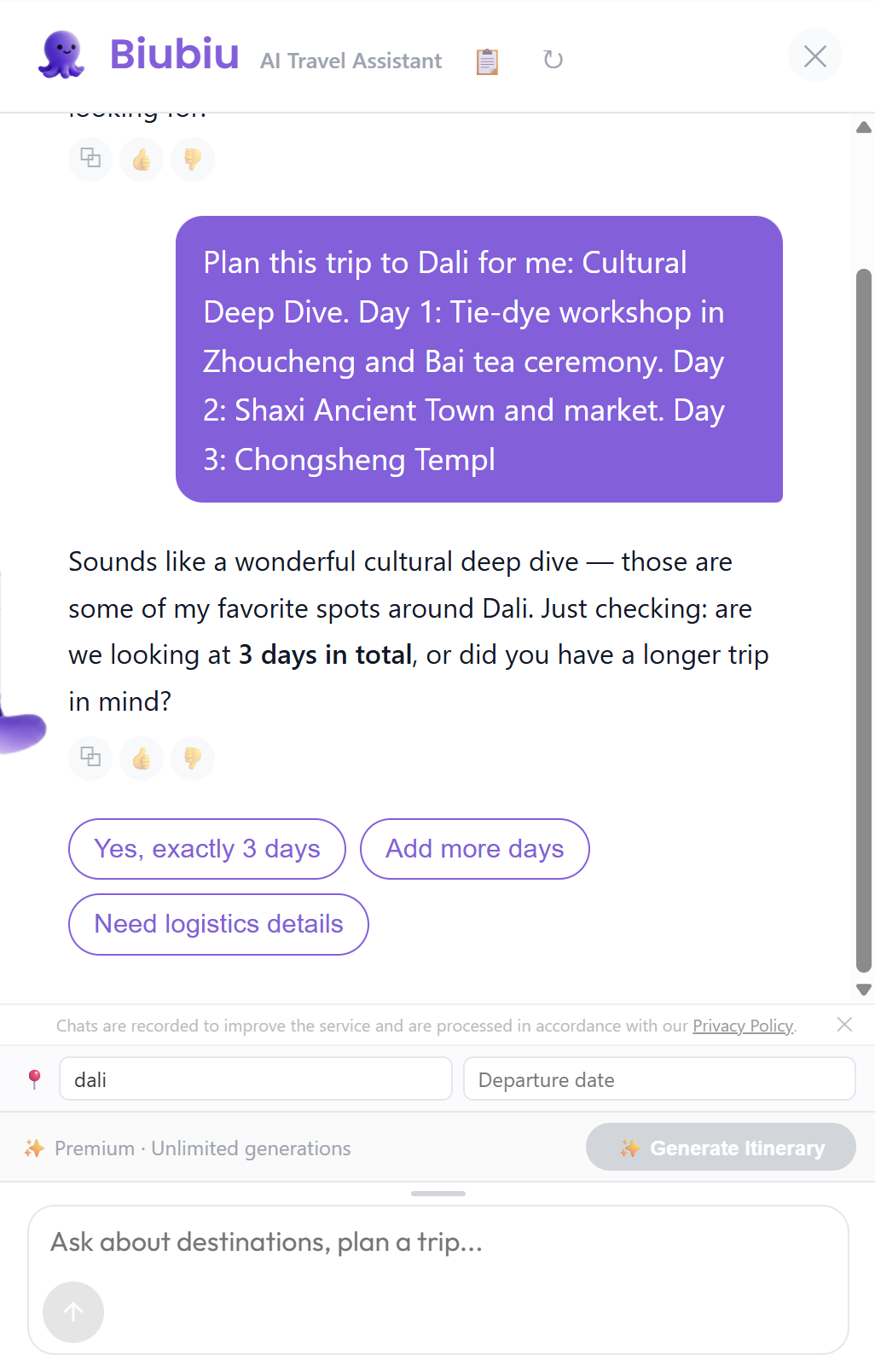
- Tell it what you have in mind in one sentence, for example: *"3 days in Xi'an, we love food and history."*
- Answer its follow-up questions about your travel style, pace, and budget — the more you share, the better the plan.
- When you are ready, click ✨ Generate Itinerary at the bottom of the chat.
- Your structured day-by-day itinerary opens in a new page — tweak anything there, and it stays saved to your account.

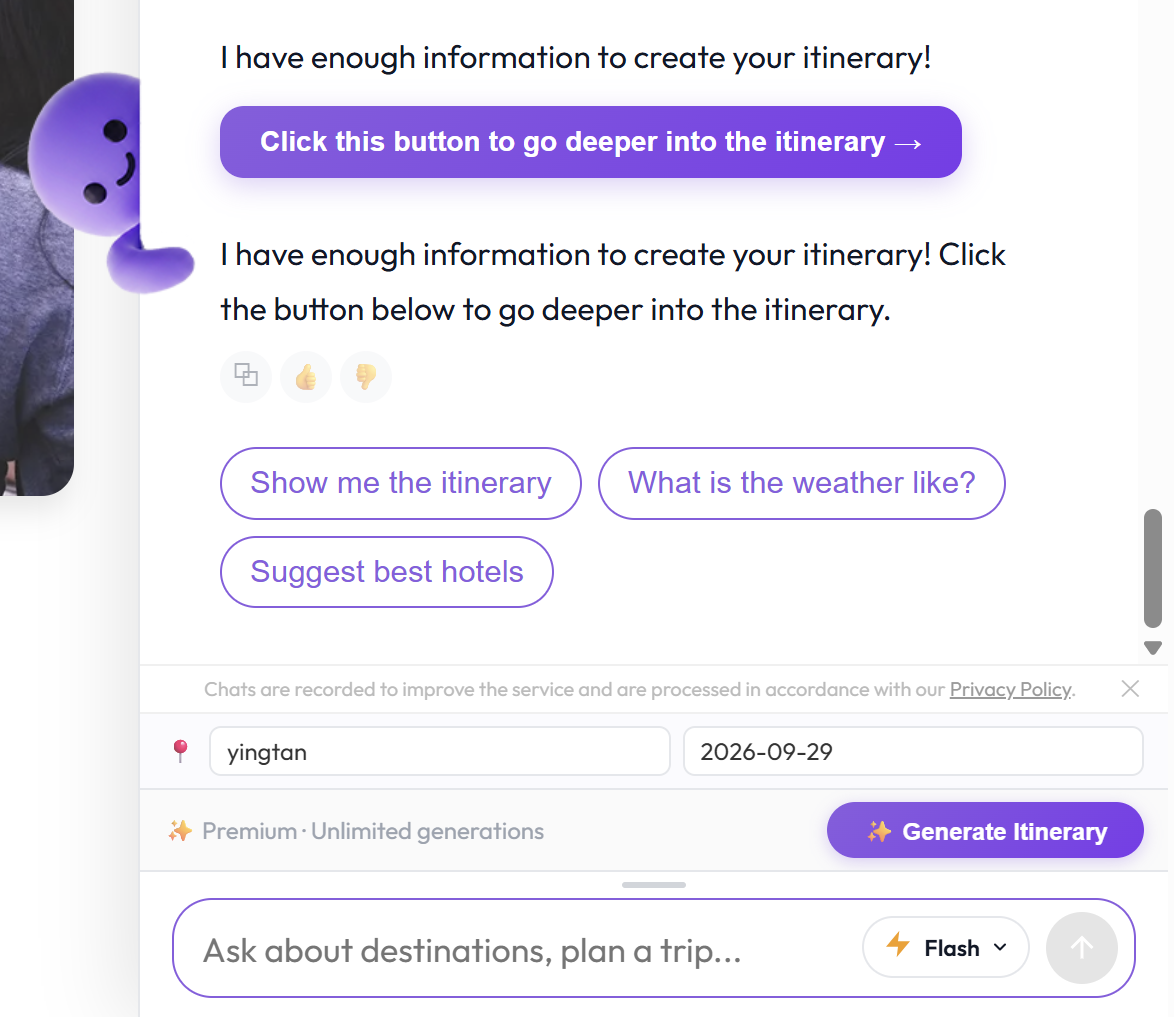
Tip: In a hurry? Fill the destination and date into the anchor bar first (see How to use the trip anchor bar) and Biubiu starts with your trip already framed.
Method 2: Start from a destination page
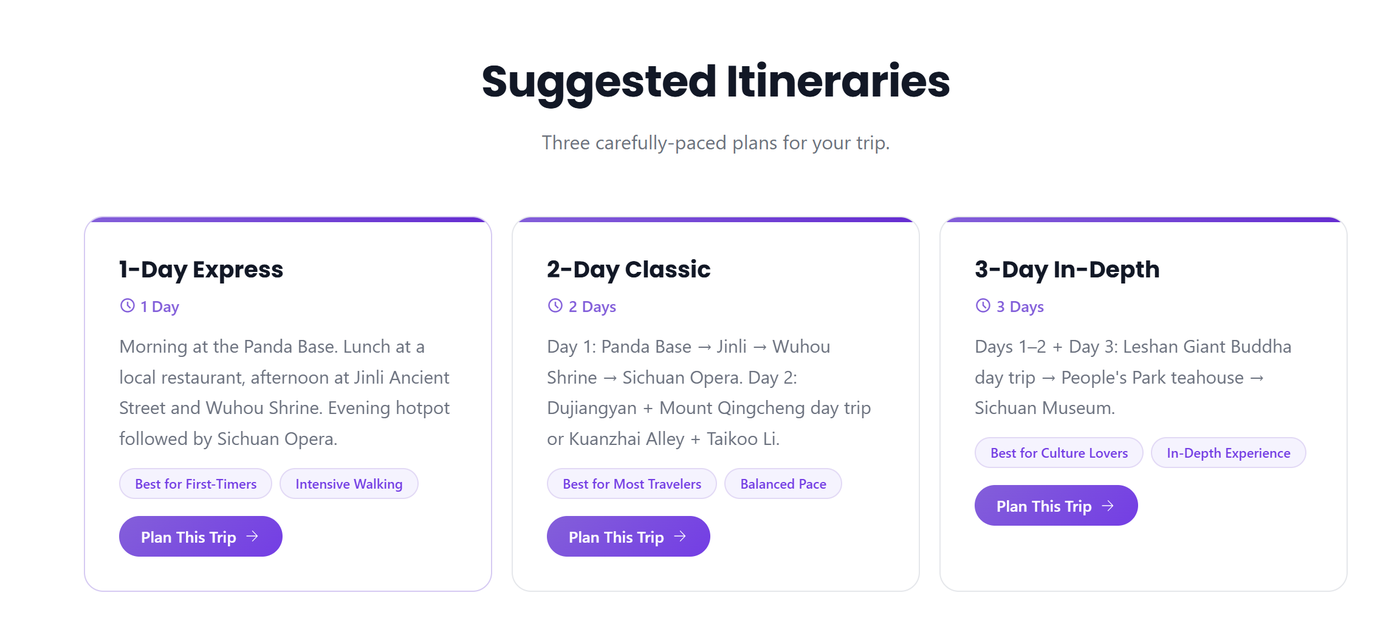
Every destination guide shows ready-made itinerary ideas for that place. If one fits your plans:
- Open the destination's page from Destinations and scroll to the itinerary section.
- Click Plan This Trip on the one you like.
- The trip opens in the planner with every day filled in — adjust anything and it's saved to your account.
Method 3: Convert a trip from the Itinerary Library (Premium)
- Open the Itinerary Library and browse the wheel or search for a destination.
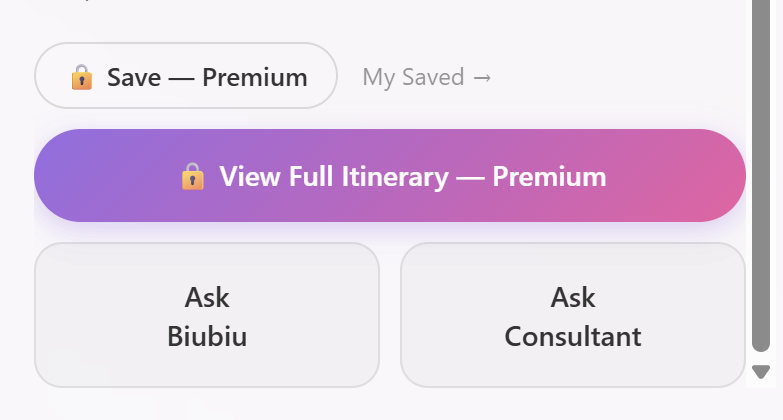
- Click a trip, then View Full Itinerary to open the day-by-day plan.
- Free accounts see a Premium lock here — upgrading unlocks the full plan and the convert button (you land right back on the same trip).
- Click Convert to My Itinerary to save the trip as your own, then edit it freely.
Note: Every method ends up in the same place — your own editable itinerary under My Trips. See How do I save, edit, or download an itinerary for what you can do next.
What the finished plan looks like
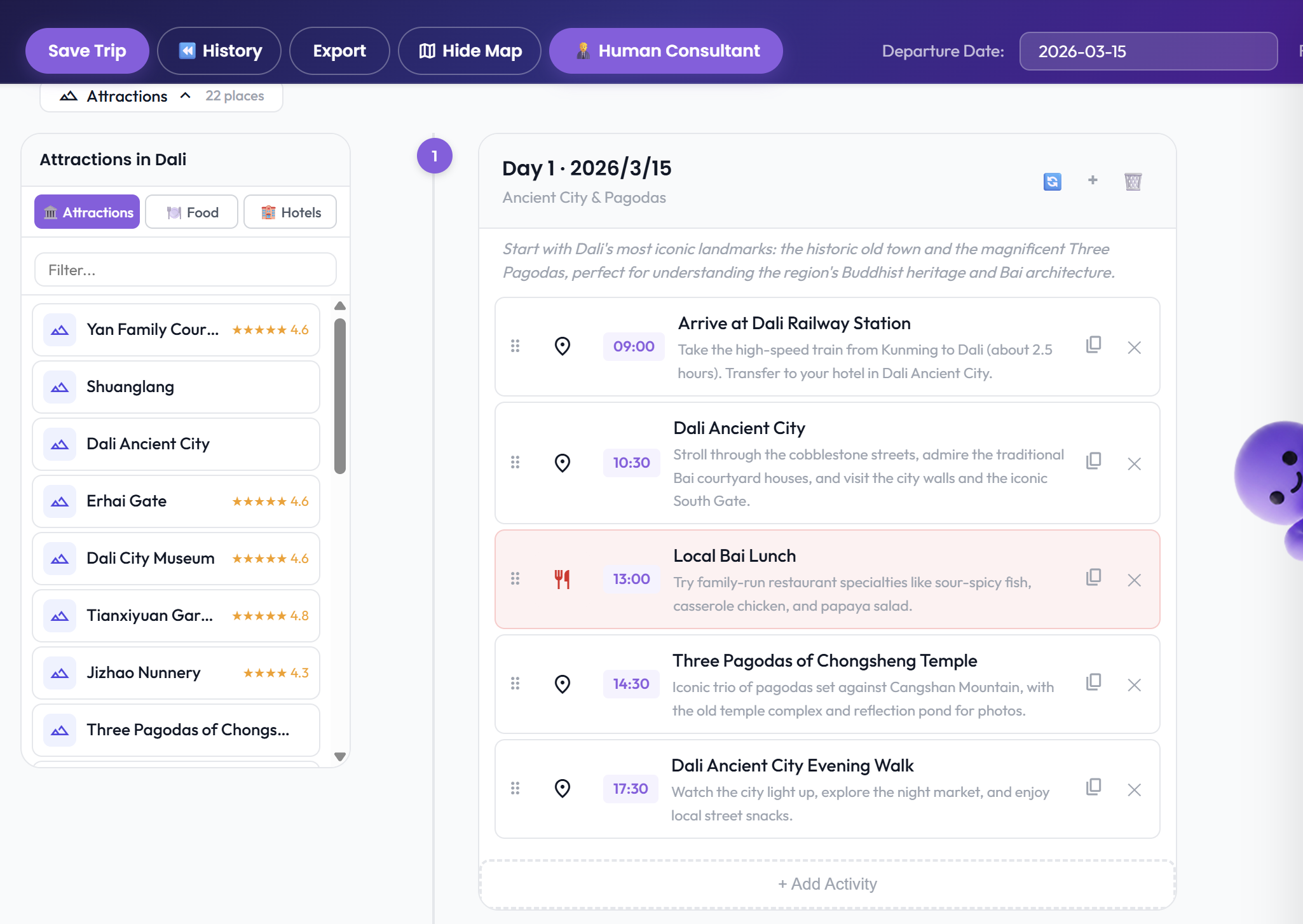
Once generated, your itinerary opens in the planner with day-by-day activities, times, and notes: