How do I view my itinerary on the map?
Updated 2026-08-18
Question
My itinerary has a map. How do I see the order and locations of my days on it?
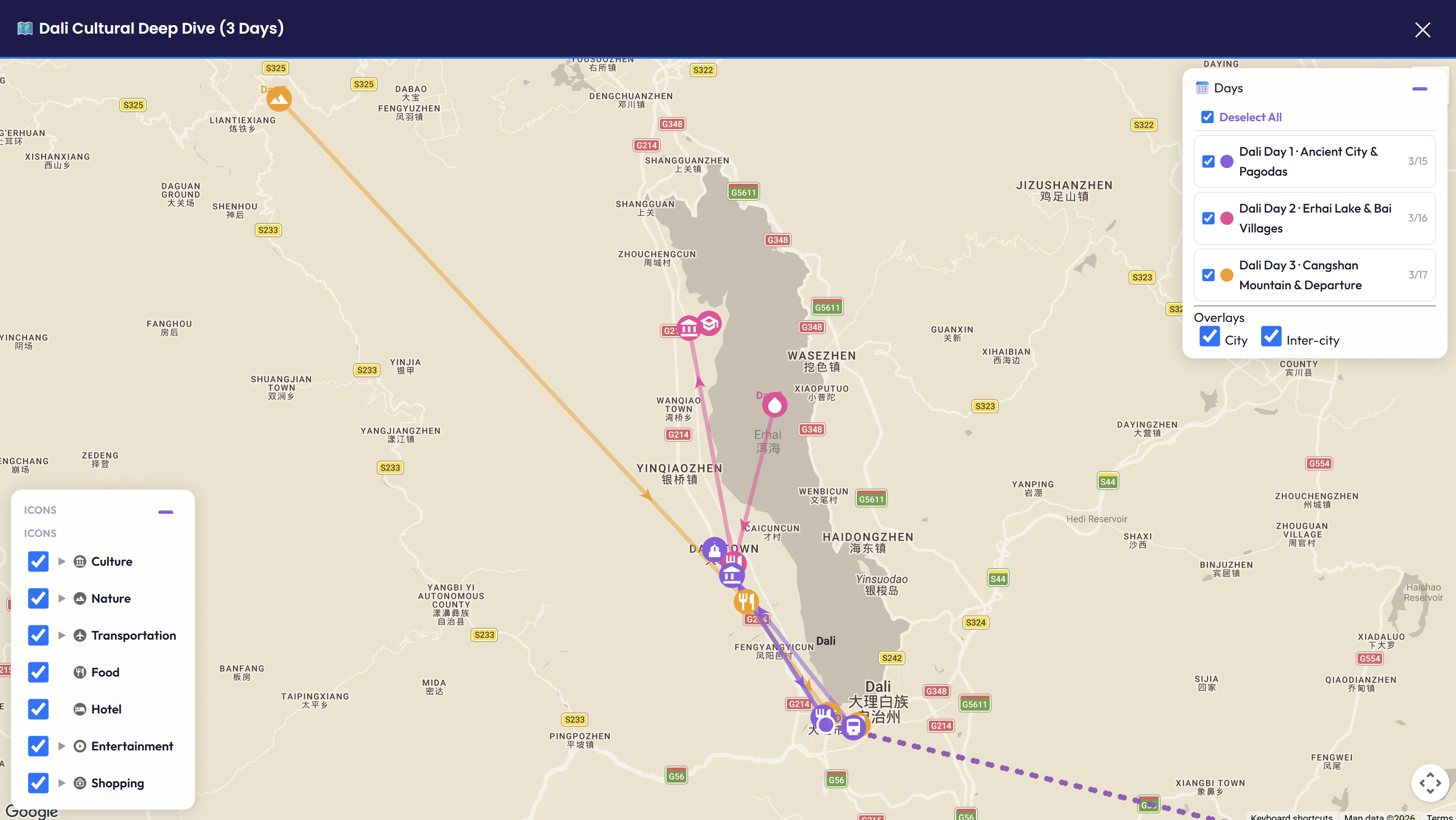
The itinerary map turns your day-by-day plan into a geographic view — you can see where each day takes you, in what order, and how you travel between cities.
Opening the map
- Open your itinerary (right after generating, or from My Trips).
- Click the Map / Map View button on the itinerary page.
- To use the full screen, click ⛶ Expand in the map's corner. Click it again (or close) to return to your plan.
Reading the map
- Day tracks — each day of your trip gets its own color, so you can see at a glance which stops belong to Day 1, Day 2, and so on.
- Stop order — stops appear in the order you'll visit them, matching the day list on the left.
- Cross-city routes — when your trip moves between cities, the connecting route is drawn on the map.
Showing and hiding days
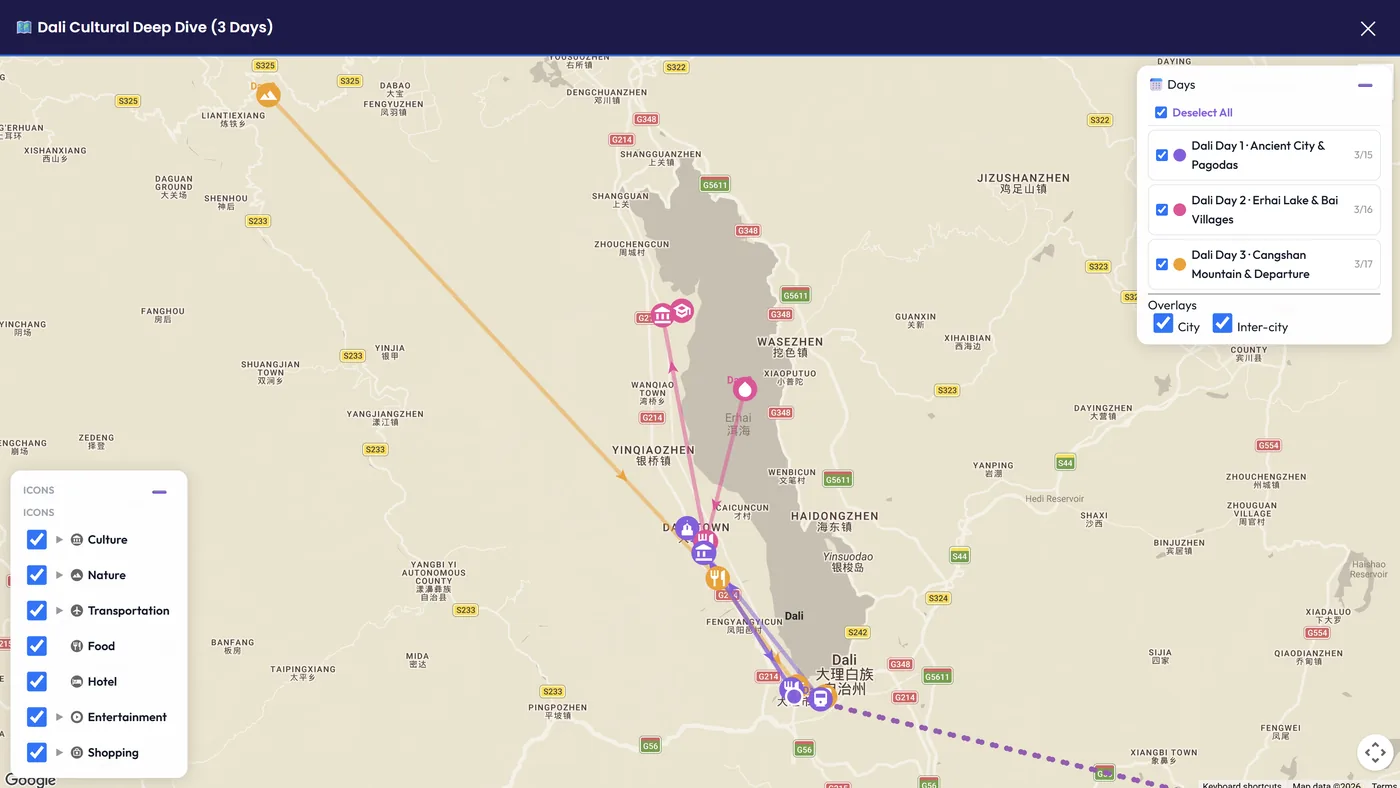
The fullscreen map has a panel for controlling what you see:
- Use the checkboxes next to each day (for example, *Beijing Day 1 · 8/15*) to show or hide that day's track.
- Use Select All / Deselect All at the top to toggle everything at once.
- The Overlays section controls the cross-city routes layer.
Tips
- On phones and tablets the map switches to a touch-friendly layout automatically.
- Hiding days is handy when comparing just two days of a busy schedule.
- Finished looking? Close the fullscreen and you're back in the editor — see How do I edit my itinerary for what you can change.
Watch the map in action
Expand the itinerary map to full screen:
Switch between the Overview and City Detail modes:
The legend on the right shows each day's stops — toggle a day to show or hide its route line:
Drag the canvas to move between different cities' attractions:
The map with an itinerary loaded: